Quick Capture
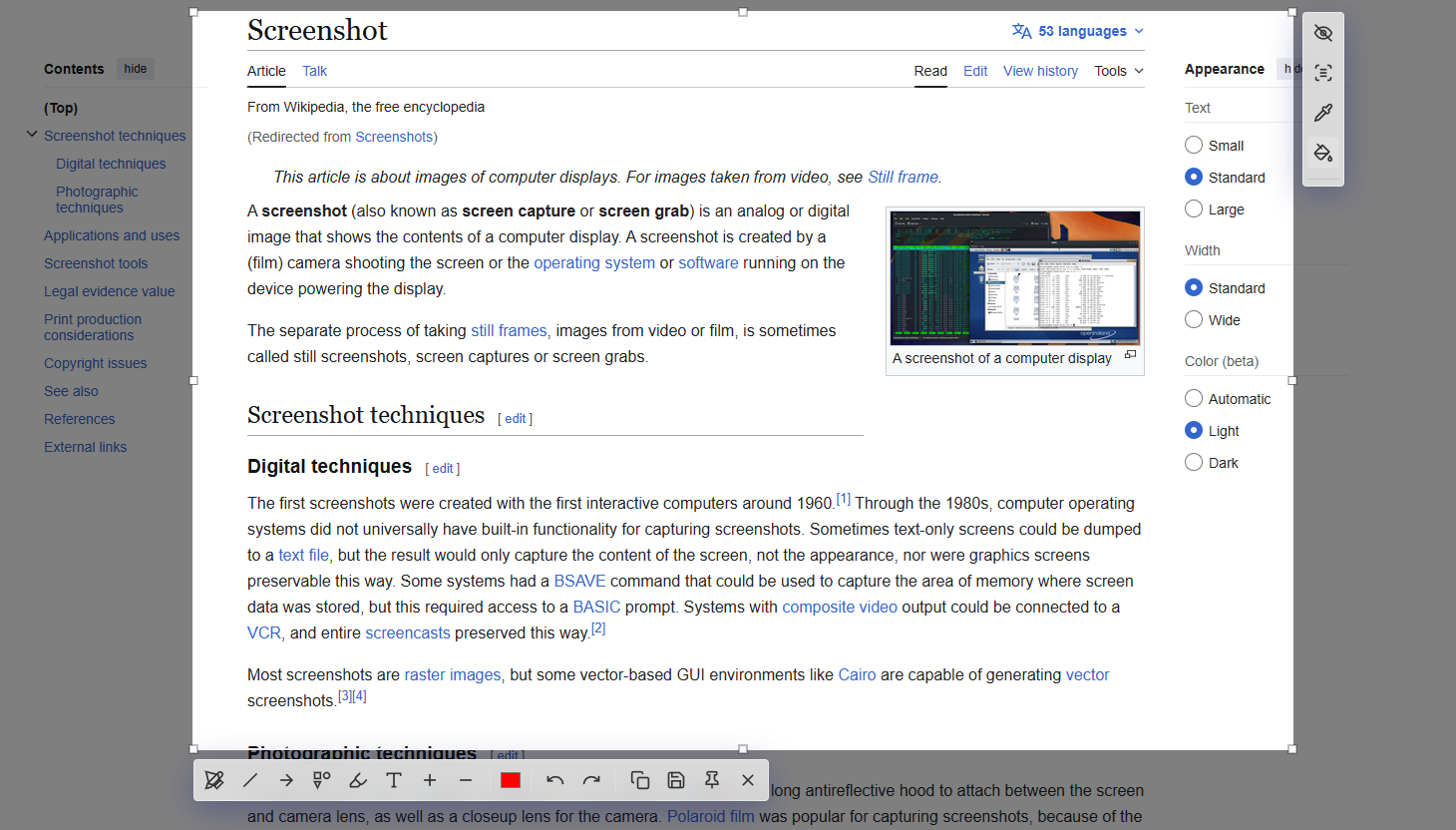
Select any area with a shortcut and capture instantly.
Windows Screenshot Utility
Capture, annotate, pin, and share screenshots in seconds.
Install note: The Windows warning before install is due to SnapLight not being signed with a code-signing certificate yet. Trusted certificates are paid (often around $100-$700 per year), which is why the installer is currently unsigned.
Everything needed for fast screenshot workflows in one lightweight app.
Capture with shortcut, annotate in seconds, then copy/save/pin immediately.
Select any area with a shortcut and capture instantly.
Use pen, shapes, arrows, text, blur, and highlighter tools.
Pin a selected area as a floating sticker while you work.
Copy to clipboard fast or save as PNG, JPG, or WebP.
Select an area and extract text instantly.
Pick accurate colors directly from any screenshot area.
Optional launch on Windows startup so it is always ready.
If you are not sure where it opens, follow these quick steps.
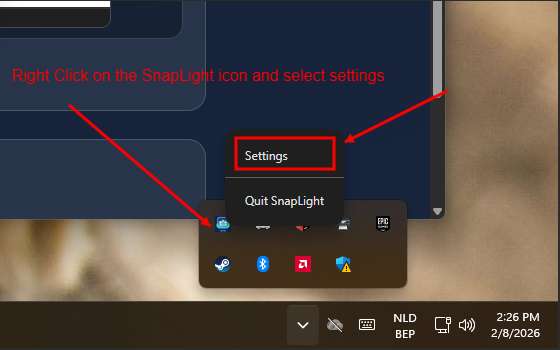
After installing SnapLight, then launch it from the Start Menu or go to System tray and Right click on SnapLight icon choose settings
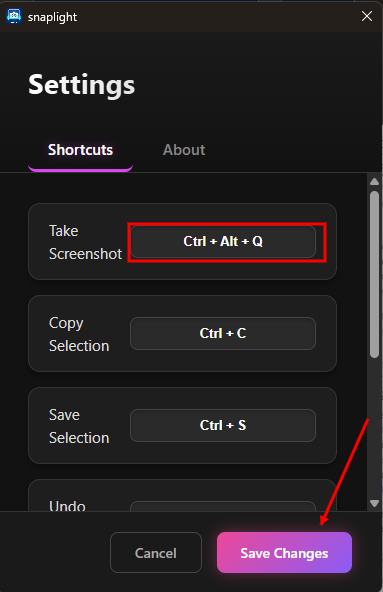
Here you can choose to have different shortcuts or settings for SnapLight. Once you have the desired shortcuts click Save.
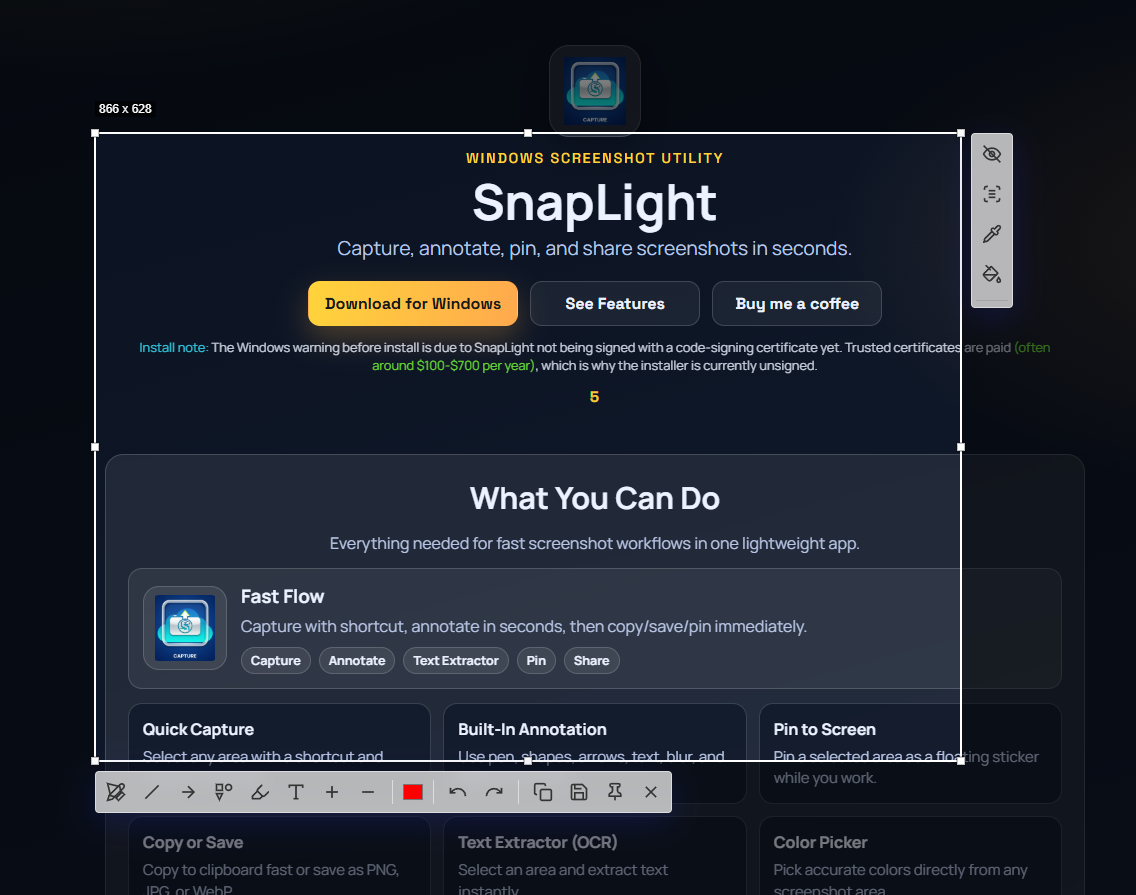
Whenever you press the shortcut, SnapLight opens so you can capture and edit your screenshot right away.
Enjoy!
Lightweight, focused, and fast. It stays out of your way until you need it.
Use next/previous to browse screenshots.
If SnapLight helps your workflow, you can support future updates.
Buy me a coffee